Mobile Apps
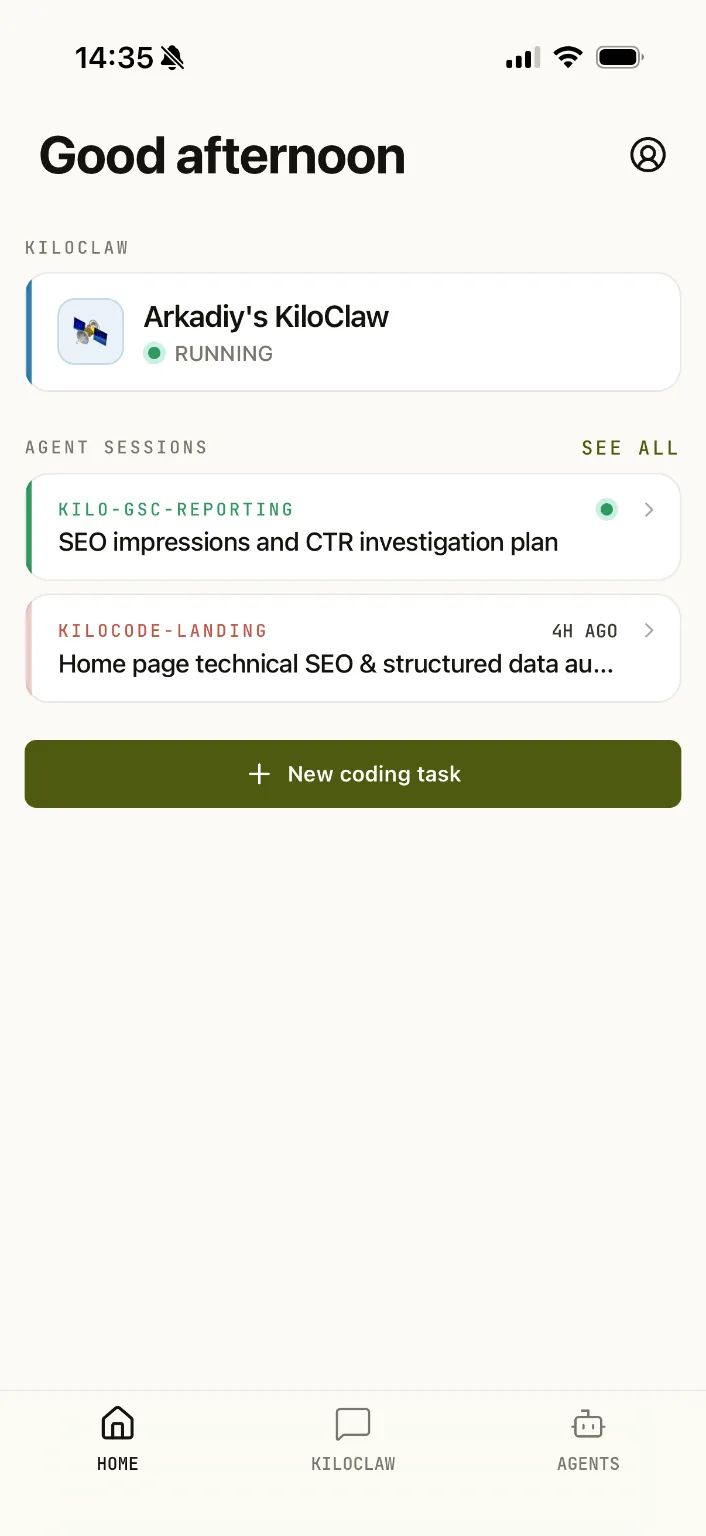
Use Kilo Code from your phone to keep coding sessions moving while you are away from your desk. The mobile app connects to Cloud Agents and remote sessions from your local CLI or editor extensions.
What you can do
The mobile app lets you:
- View and manage Kilo Code sessions, including remote CLI and extension sessions running on your local machine.
- Spawn Cloud Agents and code directly from the app.
- Monitor and view all non-remote sessions in one place.
- Send follow-up messages while a session is still running — they are queued and processed in order.
- Run slash commands (like
/compact) on connected remote CLI sessions, and start a new session in the same workspace with/new. The new session inherits the current session's mode and model. Older CLI versions that do not support remote commands prompt you to upgrade. - Track a session's goal from a fixed section under the session header, and start or control one with
/goal. - Clear the visible transcript of a remote CLI session with
/clear. Clearing is client-side only, so it works on any CLI version; server history is kept and may reappear when you re-enter the session. - Rename a remote CLI session from the app or the CLI — renames sync in both directions.
- Review GitHub pull requests end to end — diffs, checks, comments, and merging.
- Start a new session on a connected
kilo remoteCLI instance with the Run on picker.
Finding sessions
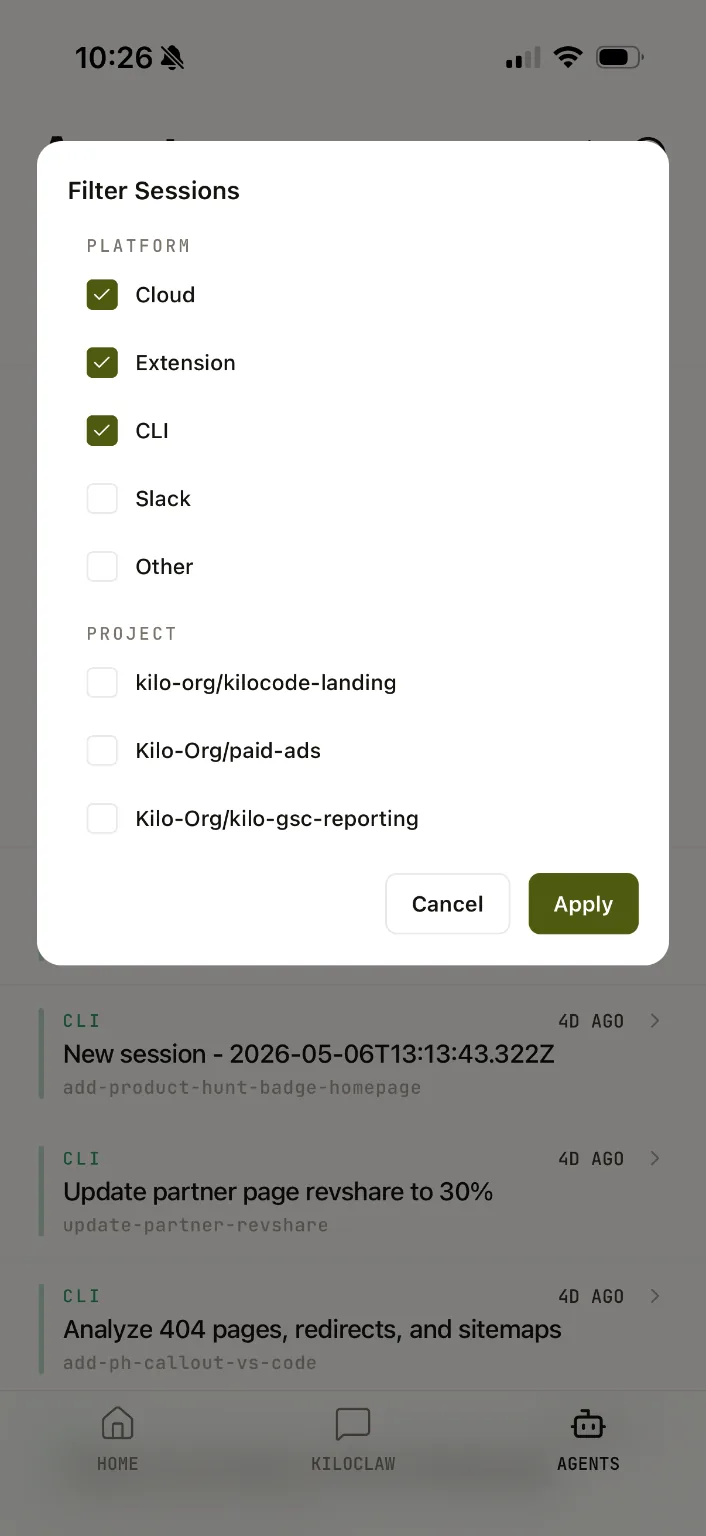
The Agents tab shows live sessions. Tap See all there to search past sessions, filter by platform or project, and change the sort order. See all on Home opens the live Agents list instead.
Privacy and telemetry
On first launch, the app asks for your consent before enabling optional telemetry — product analytics, attribution, and performance tracing. Optional telemetry is pre-selected during onboarding; you can turn it off before accepting. No optional analytics starts before you make a choice.
You can review or change your decision at any time in Settings. Declining optional telemetry keeps you signed in, and optional telemetry state stored on the device is stopped and discarded when you revoke consent or sign out.
App lock
Turn on Unlock with biometrics in Settings > Preferences to protect the app on this device. It asks you to unlock at launch and after five minutes in the background, with your device passcode available as a fallback. Locking hides your sessions and open sheets without discarding drafts or navigation. The switch shows progress while it updates and is disabled during an unlock or a setting change. If device security is unavailable or an unlock fails, the unlock screen offers Retry and explains the problem.
Links and images in chat
Images embedded in model replies stay hidden until you tap Load. The app shows the image's host first and only loads HTTPS images.
Web links in model replies ask you to confirm the destination host before opening. Choose Trust this host to skip future confirmations for that host. Review or revoke trusted hosts in Preferences > Trusted hosts; signing out clears the list. This confirmation applies to HTTP and HTTPS links, not other link types.
Language and region
The app follows your device language, with English as the fallback. Choose another language from the login screen or Preferences. The picker supports search and shows languages in their own scripts. Dates, times, and currency formatting follow the selected language. Switching between left-to-right and right-to-left layouts restarts the app.
Kilo Pass and billing
For Kilo Pass pricing, billing, and account management details, use the Kilo Pass pricing page.
On Android, you can buy, restore, and change Kilo Pass tiers through Google Play. Tier changes take effect at the next renewal; your current tier and credits stay in place until then. Google manages cancellation and payment methods for passes purchased through Google Play.
Choosing where a session runs
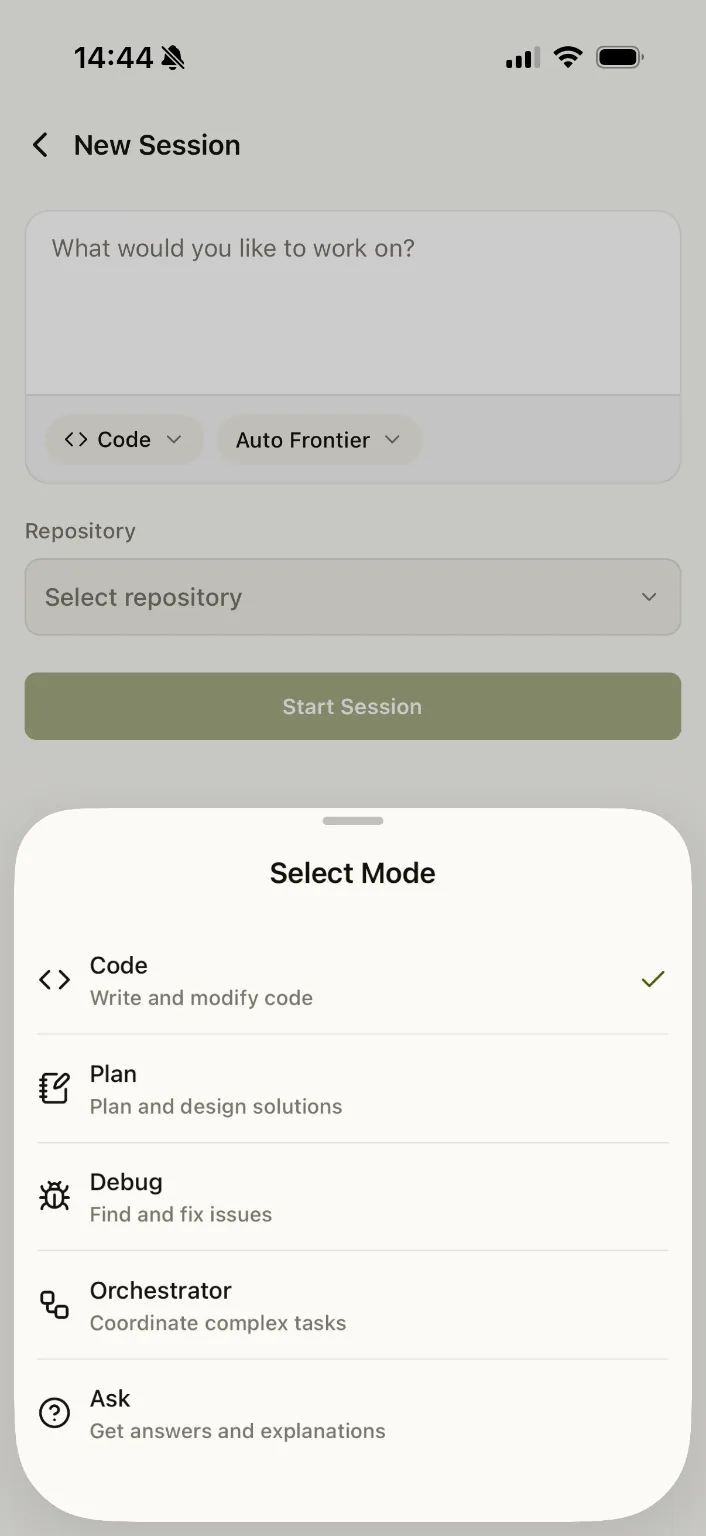
The new-session screen includes a Run on picker that chooses where your session runs:
- Cloud Agent — the managed cloud environment (the default).
- A connected instance — a
kilo remoteCLI running on your own machine. The picker lists the instances currently connected to your account under Remotes and Terminals groups, each with its own icon. Each connection shows its branch and start date and time when available.
Remote sessions start with the mode and model selected on the new-session screen; older CLI versions that don't accept those fields fall back to their own defaults. By default, the workspace is the CLI's launch directory. Use Folder to choose a child folder, including nested folders, before starting. If the CLI cannot list folders, the app explains this and starts in the launch directory instead. In organization context, the new session belongs to that organization.
For Cloud Agent sessions, choose a repository from GitHub, GitLab, or, for organizations, Bitbucket. The picker groups repositories by provider and includes Recently used. Each provider has its own connection and error messages, so a problem with one does not hide the others.
Continuing a finished session
Open a finished session and tap Continue to copy its conversation into a new session. The form starts with the source repository, mode, model, and reasoning variant. Choose Cloud Agent or a connected CLI in Run on, then tap Start.
The CLI must support importing sessions. If it does not, the app explains why and disables Start rather than creating an empty session. An unavailable model or repository also prevents starting until you choose an available option.
Live session counts
When an organization is selected, the Agents screen shows how many of its sessions are live above the title, and the Agents tab shows a matching badge that stays visible from other tabs. The count disappears while sessions are loading, after an error, and when no sessions are live.
Auto-approve for a session
The session context sheet has an Auto-approve row at the top. Turn it on to approve that session's permission asks automatically: the permission card is skipped, and an ask that is already waiting is resolved. Turn it off to make the next permission ask show its card again.
Auto-approve applies to one session only, so other sessions keep prompting. Clarification questions always show their card and are never auto-answered. The row shows whether auto-approve is on, off, or unavailable, and warns that tools then run without a prompt; sessions that cannot auto-approve, such as read-only sessions, show the row disabled with the reason.
The toggle is kept in memory for the session and never changes your global auto-approve configuration. Signing out or switching accounts turns auto-approve off for every session.
Hiding thinking details
Turn on Hide thinking details in Settings → Preferences → General to remove thinking rows, collapsed thinking items, and thinking text from the session page, including streaming and loaded sessions and the subagent sheet. The setting is off by default and is remembered across app launches.
While a model streams reasoning, the composer and subagent spinners still read Thinking. With the setting off, the session page behaves exactly as before.
Queueing follow-up messages
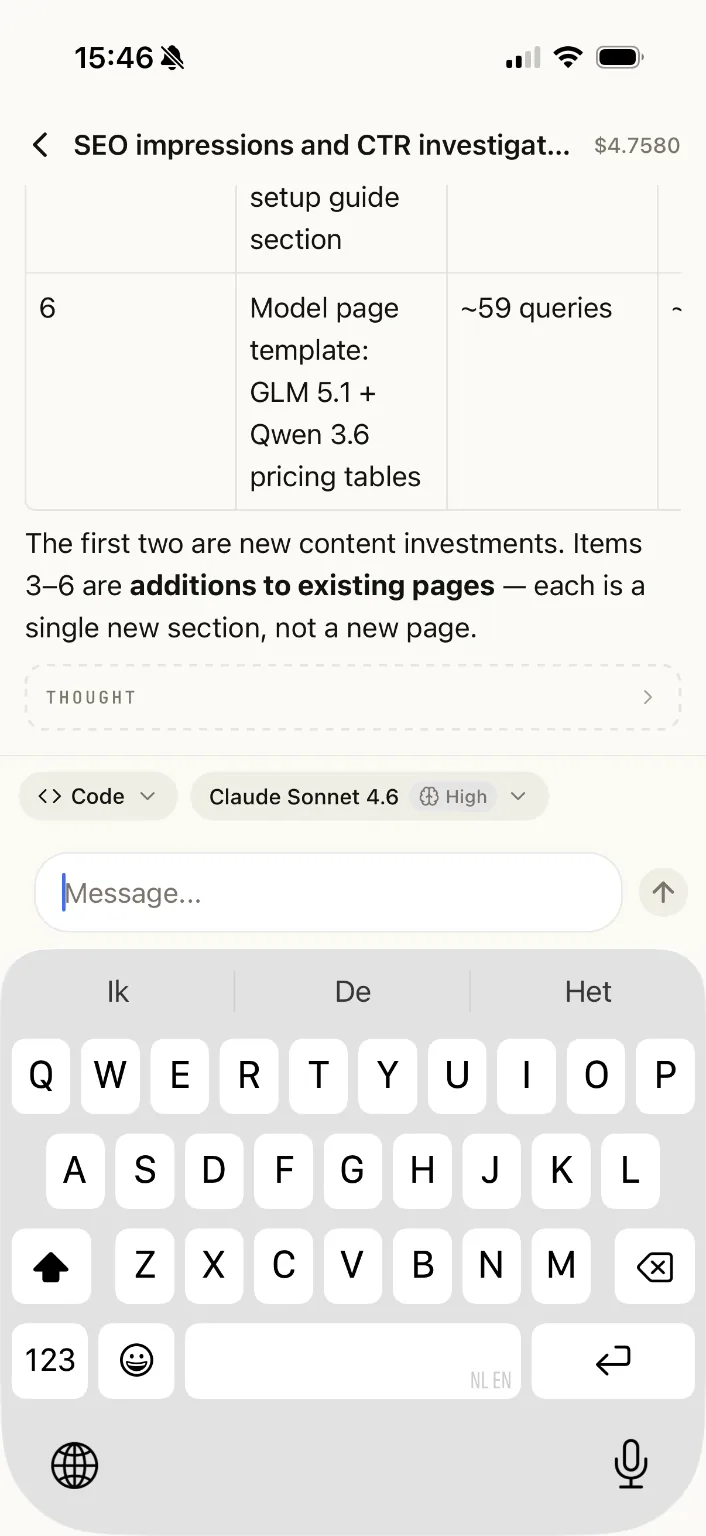
The composer stays editable while the agent is working, so you don't have to wait for a session to finish before sending your next message. Type your follow-up and press Send to add it to the session's queue; queued messages are processed in order. While a session is streaming, Stop appears only when the composer is empty — with text entered, Send takes its place.
A queued message shows a subtle Queued badge on its bubble. The badge clears when the message starts processing or when the queue drains or is cancelled. Queueing works for Cloud Agent sessions and for remote sessions on a connected kilo remote CLI instance.
Voice input
Dictate prompts with the microphone in the composer. Voice input uses one of two engines:
- On-device (default) — the operating system's speech recognizer.
- Kilo Gateway — turn on Gateway transcription in Preferences to transcribe through your Kilo account.
The switch is a two-way choice, not a fallback: the selected engine owns the whole dictation and the other engine is never called. The choice applies to every voice dictation in the app.
With gateway transcription on, dictation uses the transcription model you pick in the transcription settings. If you have not chosen a model, the app uses the first model the gateway offers. The chosen model persists across app launches. Gateway transcriptions respect your organization's provider allow-list and data-collection policy.
While the gateway transcribes, the composer shows Transcribing... and the microphone button cancels the upload. An unreachable gateway, an unavailable model, no speech, and a timeout each show their own message; an unavailable or unset model opens the transcription settings.
Attachments in remote sessions
When you connect the mobile app to a kilo remote CLI session, you can share files in both directions.
Sending files from your phone to the CLI
Attach up to 5 files (each up to 20 MiB) from your phone to the remote session. The CLI automatically processes them:
- Text, images, and PDFs — the file content is converted to a
data:URL and handed directly to the model as a file part. The model sees the content as if you had loaded it locally. - Other file types (binaries, archives, etc.) — the file is saved to a per-session scratch directory on the CLI machine. The session transcript shows the saved path, filename, file size, and MIME type. The agent can inspect the file with the
readtool for text content or shell utilities for binary content.
Attaching files from the phone is the mobile flow — this is separate from kilo run --file <path>, which attaches local files to a local prompt.
Receiving files from the CLI on your phone
While the CLI is connected, the agent can deliver a file to your phone with the send_file tool (up to 4 MiB, remote sessions only). The file appears as a chip on the tool card — tap the chip to open the share sheet and save or forward the file. This tool works only when kilo remote is actively connected; it is not available in Cloud Agent sessions.
Reviewing GitHub pull requests
Open a pull request from a PR link to review it without leaving the app:
- Overview — PR state and CI checks, plus sidebar metadata: when the pull request opened and last moved, its labels, the reviewers and each one's state (approved, changes requested, commented, dismissed, or awaiting review), assignees, the linked issues it closes, and a comment-count badge on the Discussion tab. Sections that GitHub reports nothing for are hidden.
- Files — syntax-highlighted diffs with line-level comments and a file navigator.
- Discussion — review threads with replies, resolve/unresolve, and reactions.
Comments you leave on diffs are collected into a pending review on your device and submitted to GitHub as a single review. To post a regular conversation comment instead, tap Comment on this pull request at the bottom of Discussion. These comments appear directly in the discussion and are not part of a review.
When the PR is ready, you can merge it (merge, squash, or rebase), enable or disable auto-merge, or update the branch, all from the app.
PR review uses your connected GitHub account; the app asks you to connect GitHub if you have not already.
Session cost and model details
The app shows what each session cost and which models did the work:
- Session list — a finished session with a recorded cost shows it in the row's meta line (for example,
$0.12 · 5m ago). Sessions that are still running or have no cost show no cost. - Cost breakdown — open a session's Context usage sheet to see a Token usage section (input, output, reasoning, cache read, and cache write tokens, plus the cache hit rate) and a collapsible Models section with each model's name, provider, step count, and cost. A Subagents row covers any remaining spend, so the per-model costs always add up to the session total.
- Per-message model label — assistant messages show a dimmed model label on the first assistant reply and whenever the model changes during the session. Turns routed by Auto Model show the concrete model that handled the turn.
Cost is recorded when a session closes; sessions that closed before this feature shipped do not show a cost.
Widgets and live updates
Add the Active Agents widget to track Needs input, Working, and Idle session counts. Tap the widget to open your agents in the app. Background updates keep these surfaces informed while the app is not open; signing out stops updates for that account.
- iOS: widgets are available on the Home Screen and Lock Screen, with a Live Activity on the Lock Screen and Dynamic Island. Compact layouts prioritize agents that need input, then working agents, then idle agents. If Live Activities are disabled, the Agents tab offers a prompt to open device settings.
- Android: the resizable Home Screen widget shows Needs input, Working, and Idle counts at every size, including zeros while work is present. An ongoing Active agents notification also reports session activity. Supported devices can promote it to a Live Update. If notifications are disabled while work is pending, the app offers a prompt to enable them in device settings.
Android App
The Android app is available now on Google Play.
iOS App
The iOS app is available now on the App Store.