Kilo Code for JetBrains: Free AI Coding Plugin
Installation
Kilo Code v7 for JetBrains is officially available. It uses a native JetBrains interface, works well in remote development split mode, and does not require Node.js.
The JetBrains plugin provides the best native JetBrains UX for working with an AI coding agent, and it improves with every release. Enable automatic plugin updates to get the latest fixes and improvements as soon as they are available.
Install the JetBrains plugin
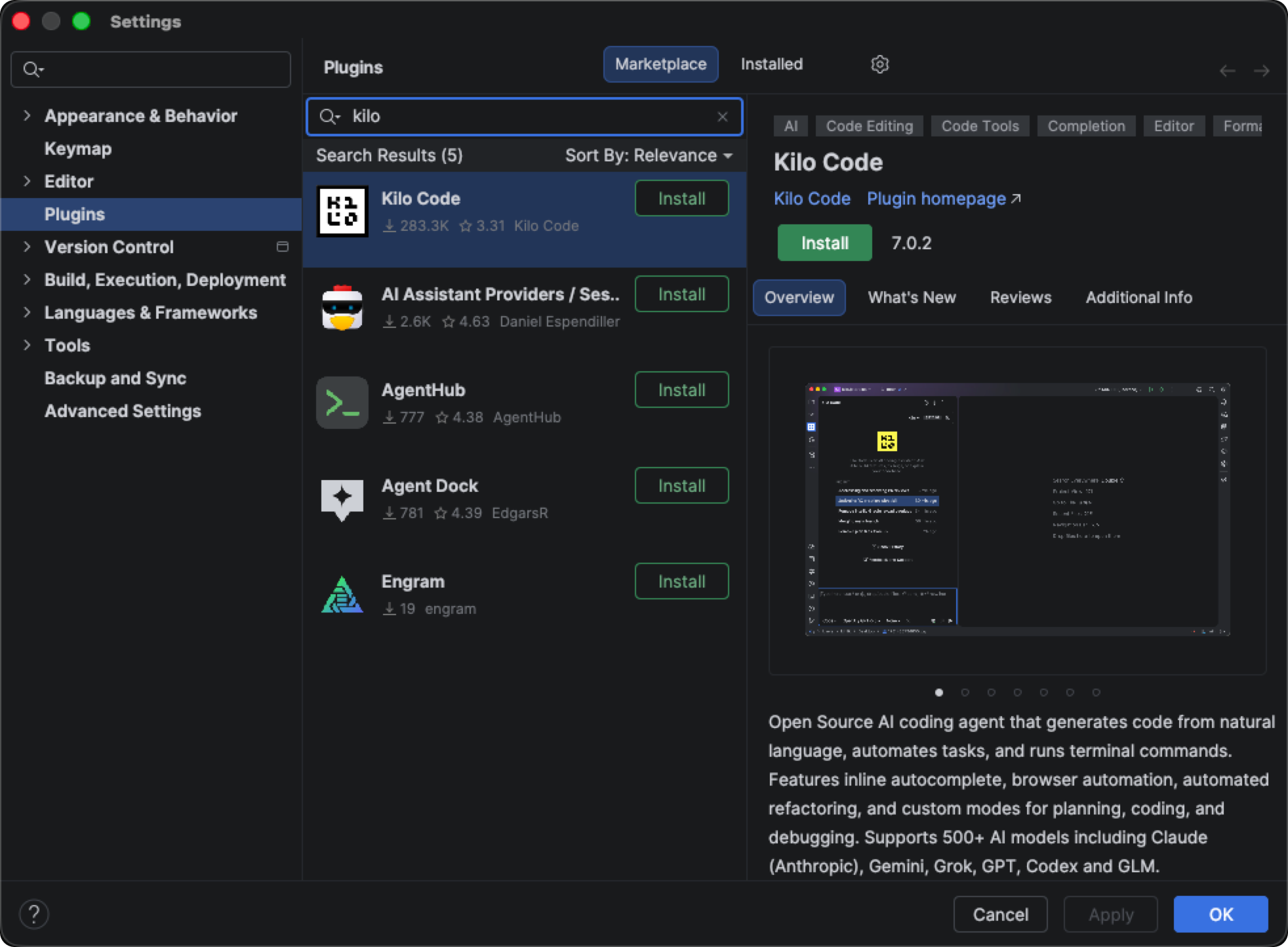
- Open IntelliJ IDEA or another JetBrains IDE
- Go to Settings → Plugins
- Search for Kilo Code in the Marketplace tab
- Click Install or Update and restart your IDE if prompted
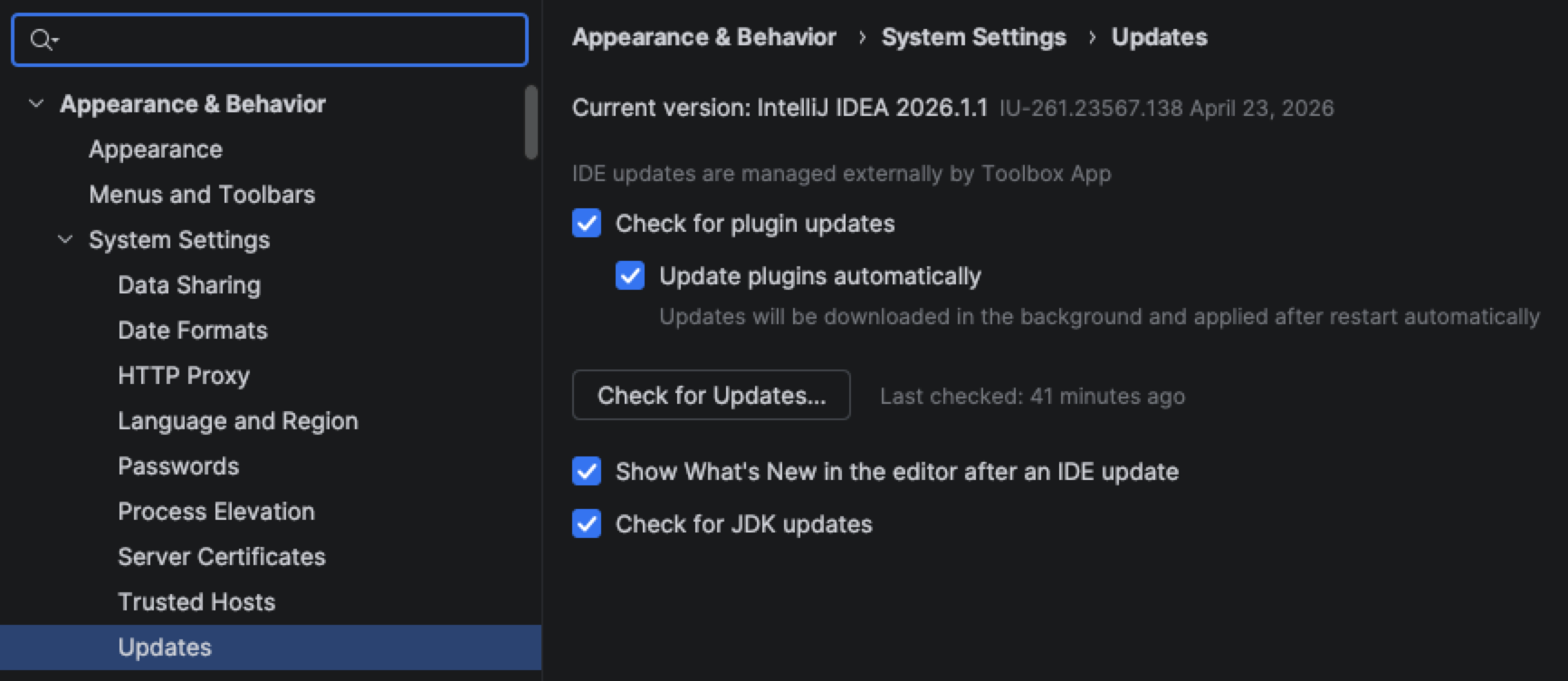
- Open Settings → Appearance & Behavior → System Settings → Updates, then enable Update plugins automatically (recommended)
Install with bundled Kilo Core
The Marketplace build is best for most users. Use the bundled Kilo Core build when your IDE cannot download the Kilo Core runtime after installation, such as on locked-down corporate networks, behind strict proxy or TLS inspection, in offline development environments, or where corporate policy blocks applications from downloading executables at runtime.
The bundled build ships the JetBrains plugin with Kilo Core included. The install is larger, but first launch does not need a separate runtime download.
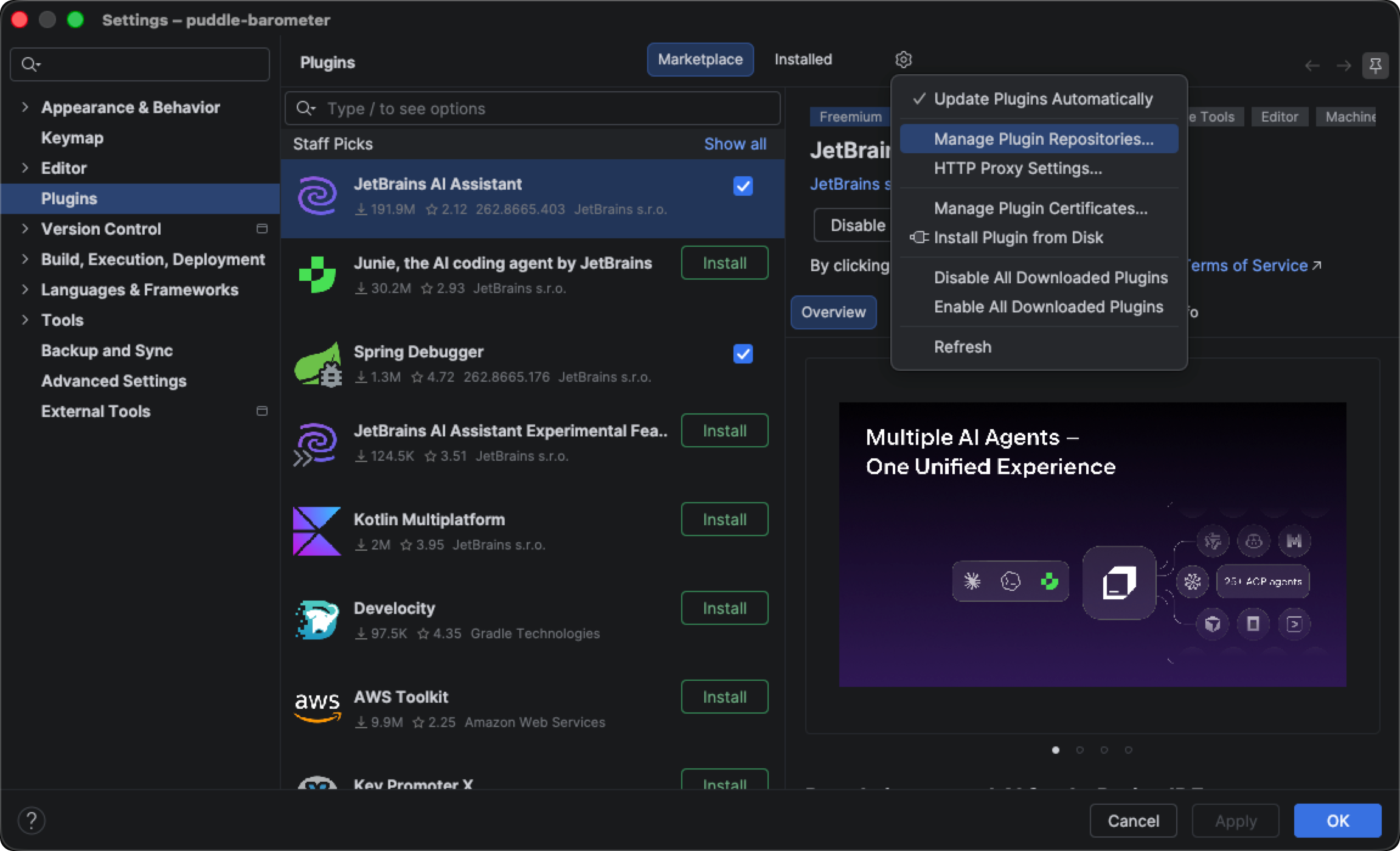
Open Settings → Plugins
Click the gear icon and choose Manage Plugin Repositories...
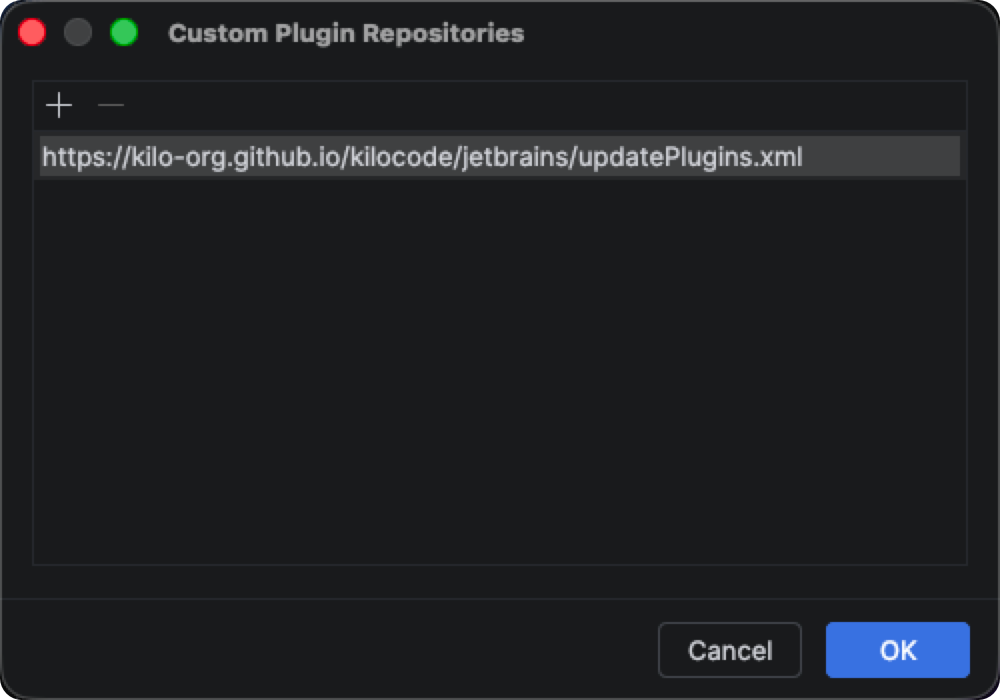
Click + and add the Kilo Code repository URL:
https://kilo-org.github.io/kilocode/jetbrains/updatePlugins.xml
Click OK, then install or update Kilo Code from Settings → Plugins
Restart the IDE if prompted
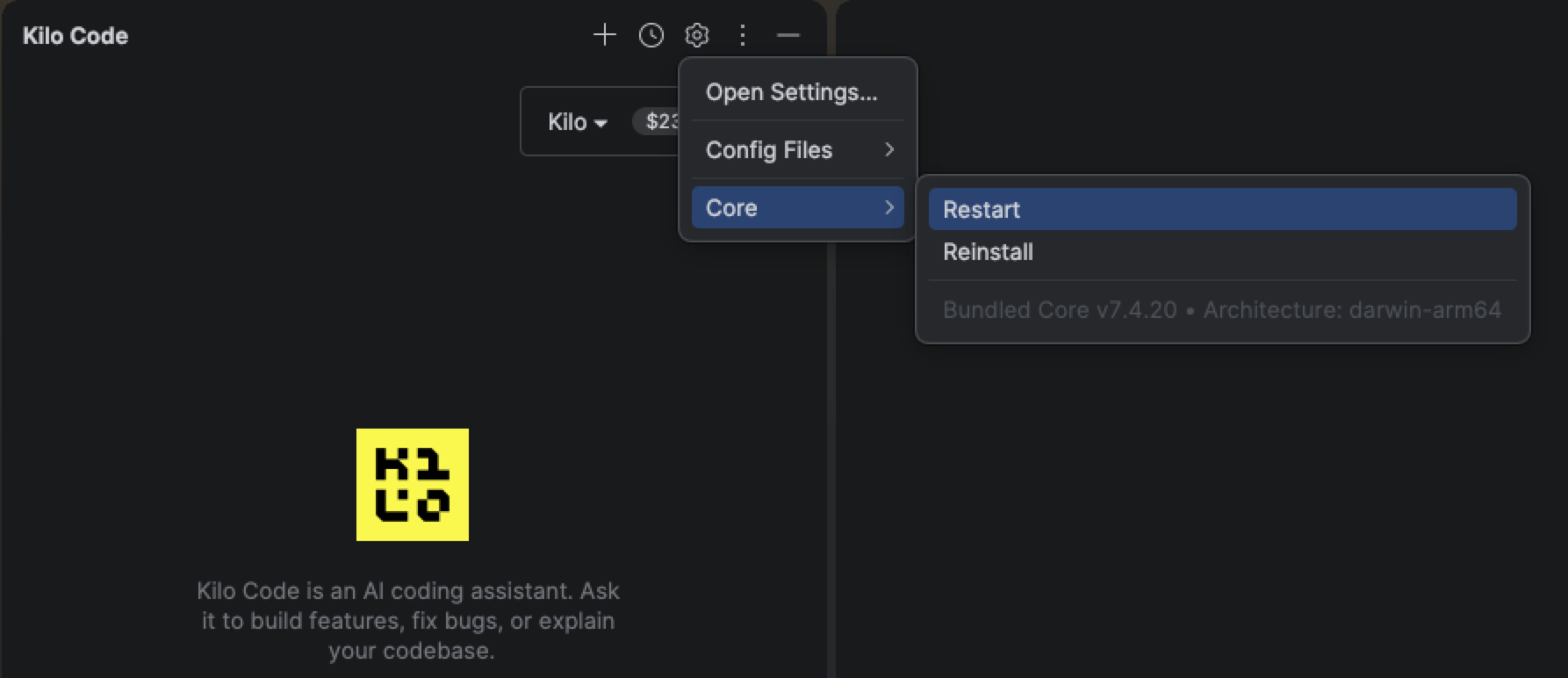
After restart, open the Kilo Code tool window and choose ... → Core. The menu footer should show Bundled Core with the version and architecture.
If you used the v7 EAP
Remove the EAP repository URL from Settings → Plugins → Manage Plugin Repositories. The official v7 plugin is now available from the default JetBrains Marketplace channel, and leaving the custom repository configured can keep your IDE on EAP updates.
Supported IDEs
- IntelliJ IDEA
- WebStorm
- PyCharm
- PhpStorm
- GoLand
- Rider
- CLion
- RubyMine
- DataGrip
Settings
Open Settings → Tools → Kilo Code to configure the plugin. Shared agent settings use the same kilo.jsonc files as the CLI and VS Code extension; IDE-specific options such as GitHub integration and worktree indexing stay in the plugin. See Settings for config file locations and precedence.
- Auto-Approve — set per-tool permission levels (Allow / Ask / Deny) and manage granular command and path exceptions without editing config by hand. Permission prompts offer one-time approvals alongside saved allow/reject rules. See Auto-Approving Actions for the shared permission model.
- Context — toggle auto-compaction, set the auto-compaction limit (the percentage of the model window that triggers compaction), enable pruning of old tool outputs, and manage file watcher ignore patterns. See Context Condensing and .kilocodeignore for what these settings control.
- Agent Behavior → Skills — inspect loaded skills, add extra skill sources (local paths or remote URLs), edit or remove custom skills, and open skill files in the editor. See Skills for the skill format and discovery rules.
- Integrations - enable or disable the GitHub integration for pull request badges and imports. It requires the GitHub CLI (
gh) to be installed and authenticated. - Advanced → Index agent worktrees - include
.kilo/worktreesin the containing project's index. Worktrees are excluded by default to avoid duplicate search results. Files opened from an excluded worktree in the main IDE window lack code resolution and inspections; open the worktree as its own project for full indexing.
Chat and worktrees
Use Chat for the current workspace and Agents to manage parallel tasks in isolated git worktrees. + Session starts a conversation; + Worktree opens the worktree creation dialog.
- New Worktree creates a new branch, imports a GitHub pull request with From PR, or uses an available local branch with From Branch.
- Move to Worktree moves the conversation and uncommitted changes into a new worktree while the session is idle. This action is also available from the main checkout's session list.
- Open a worktree to see its sessions in an editor tab. Its session list is scoped to that worktree; use the list toggle to hide or show it and drag worktree rows to reorder them.
- Worktree rows show session activity, pull request checks and reviews, unresolved review conversations, merge conflicts, and active build/run processes. Use the row menu to copy the branch name, directory, or pull request reference.
Worktree setup scripts
Add a setup script to install dependencies or prepare configuration in new worktrees. Kilo starts it automatically in a terminal, but does not wait for it to finish before starting the session. Wait for setup to complete before asking the agent to use those dependencies or generated files.
| Platform | Filename (checked in order) |
|---|---|
| macOS / Linux | .kilo/setup-script, .kilo/setup-script.sh |
| Windows | .kilo/setup-script.ps1, .kilo/setup-script.cmd, .kilo/setup-script.bat |
The terminal runs in the worktree directory with WORKTREE_PATH (the worktree directory) and REPO_PATH (the repository root) available as environment variables. Use the worktree row menu to create or open the script, or choose Run Worktree Setup to run it again.
Running code in a worktree
Open Build/Run in the worktree editor to choose a supported IDE run configuration. Eligible Application, Spring Boot, and Kotlin/Groovy application configurations can run through the project's build system using the worktree's code. Support depends on the configuration and build-system integration; the popup identifies the build system used. A plain-application fallback may omit framework settings, which Kilo reports in a notification.
Use Show Output to view a running process's console, Stop to stop it, or Kill if it remains running. Build and Rebuild are available for supported build systems. Removing a worktree stops its running processes. For unsupported configurations or full IDE run and debug support, choose Open in New Frame.
Forking a session
Use Fork Session in a worktree session's row menu, right-click menu, or prompt bar's more menu to try another approach without losing the original conversation. To branch from an earlier message, use that user message's hover toolbar. The copied conversation opens as a new session next to its source; forking does not create a separate worktree.
Diagrams in chat
Ask Kilo for a Mermaid diagram to visualize a workflow, architecture, data relationship, or timeline. Chat renders mermaid and mmd code blocks inline, with source shown while streaming or if rendering fails.
Click a diagram to open a zoomable viewer, or use its toolbar to open an editor tab with Diagram and read-only Source views. Copying a rendered diagram copies a PNG; copying while it is still streaming or after a render error copies the source instead.
Reviewing session changes
- Modified files per turn — each assistant turn that changed files shows a Modified card with the affected files and their diff stats. Expand a file to see its diff inline, or open all of the turn's changes in the Changed files diff viewer.
- Branch comparison - use the session header's Compare with base branch badge to open a diff editor with a file tree and per-file navigation. A separate uncommitted-changes badge compares local edits with the last commit.
- Stale diff refresh — diff views detect when files change on disk and offer a Refresh action to reload them instead of showing outdated content.
Worktree rows separate committed changes against the base branch from uncommitted changes. Select the uncommitted-changes badge to compare with HEAD, or use Compare to Base in the session menu to review the branch's changes including uncommitted work.
Session controls
Right-click in a session or open the prompt bar's more menu to compare changes, copy the session ID, or share the conversation. Share Session creates a public link; Stop Sharing revokes it. Sharing requires signing in to Kilo and must be allowed by your configuration. The right-click menu also includes Stop Session. Its Auto-Approve toggle applies across Kilo sessions in the IDE, not just the current conversation.
If a turn fails, use Retry after resolving the problem or selecting a different model or agent. Retry uses the current selections. A turn you stop yourself is marked as stopped, not as a failure.
Keyboard shortcuts
These shortcuts work while a Kilo session is active. They use Ctrl on macOS too, and can be changed in Settings → Keymap.
| Shortcut | Action |
|---|---|
Ctrl+1 | Cycle modes |
Ctrl+2 | Cycle favorite models, or recommended models if you have no favorites |
Ctrl+3 | Cycle reasoning effort for the current model |
Ctrl+0 | Reset the model override |
Permission requests
When the agent asks for several approvals at once, permission requests queue up instead of replacing each other. Resolve the current request to advance to the next one in the queue.