Installation
Get started with Kilo Code by installing it on your preferred platform. Choose your development environment below:
Choose Your Platform
VS Code Extension
The current Kilo Code extension is built on the Kilo CLI and is distributed as the pre-release version on the VS Code Marketplace.
- Open VS Code
- Go to Extensions (
Ctrl+Shift+X/Cmd+Shift+X) - Search for "Kilo Code"
- Click the dropdown arrow next to Install and select Install Pre-Release Version
The "pre-release" label is a VS Code Marketplace distribution channel — the extension is stable and recommended for all users.
Manual Installations
Open VSX Registry
Open VSX Registry is an open-source alternative to the VS Code Marketplace for VS Code-compatible editors that cannot access the official marketplace due to licensing restrictions.
For VS Code-compatible editors like VSCodium, Gitpod, Eclipse Theia, and Windsurf, you can browse and install directly from the Kilo Code page on Open VSX Registry.
- Open your editor
- Access the Extensions view (Side Bar icon or
Ctrl+Shift+X/Cmd+Shift+X) - Your editor should be pre-configured to use Open VSX Registry
- Search for "Kilo Code"
- Select "Kilo Code" and click Install
- Reload the editor if prompted
If your editor isn't automatically configured for Open VSX Registry, you may need to set it as your extension marketplace in settings. Consult your specific editor's documentation for instructions.
Via VSIX
If you prefer to download and install the VSIX file directly:
Download the VSIX file:
- Find official releases on the Kilo Code GitHub Releases page
- Download the
.vsixfile from the latest release
Install in VS Code:
- Open VS Code
- Access Extensions view
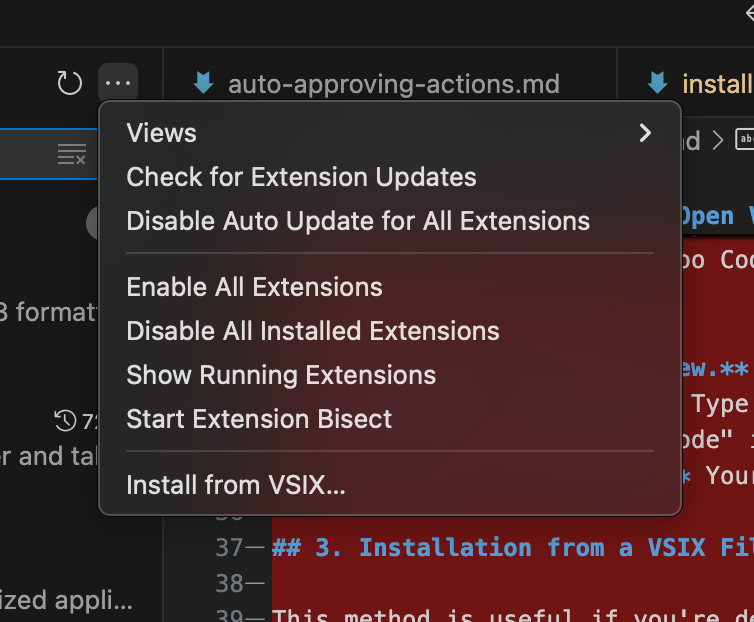
- Click the "..." menu in the Extensions view
- Select "Install from VSIX..."
- Browse to and select your downloaded
.vsixfile
If you need to temporarily go back to an earlier version, use the same flow with a .vsix asset from an older release:
- Open the Kilo Code GitHub Releases page
- Pick the release you want to stay on and download its VS Code
.vsixasset - In VS Code, open Extensions, click the "..." menu, and select "Install from VSIX..."
- Choose the downloaded
.vsixfile to install that version
If you plan to remain on that version for a while, you may also want to temporarily disable extension auto-update in VS Code so it does not immediately update again.
Troubleshooting
Extension Not Visible
- Restart VS Code
- Verify Kilo Code is listed and enabled in Extensions
- Try disabling and re-enabling the extension in Extensions
- Check Output panel for errors (View → Output, select "Kilo Code")
Installation Problems
- Ensure stable internet connection
- Verify VS Code version 1.84.0 or later
- If VS Code Marketplace is inaccessible, try the Open VSX Registry method
Windows Users
- Ensure that
PowerShellis added to yourPATH:- Open Edit system environment variables → Environment Variables
- Under System variables, select Path → Edit → New
- Add:
C:\Windows\System32\WindowsPowerShell\v1.0\ - Click OK and restart VS Code
Next Steps
After installation:
- Set up authentication to configure your AI provider
- Run your first task — Learn how to chat with Kilo to complete tasks
Getting Support
If you encounter issues not covered here:
- Join our Discord community for real-time support
- Submit issues on GitHub
- Visit our Reddit community